A first recording
This walkthrough records a search in the emulator's Settings app: open search, type "dark",
and check that the Dark theme setting is found. Start tap-studio, attach the device and open
Settings on it.
1. Select an element
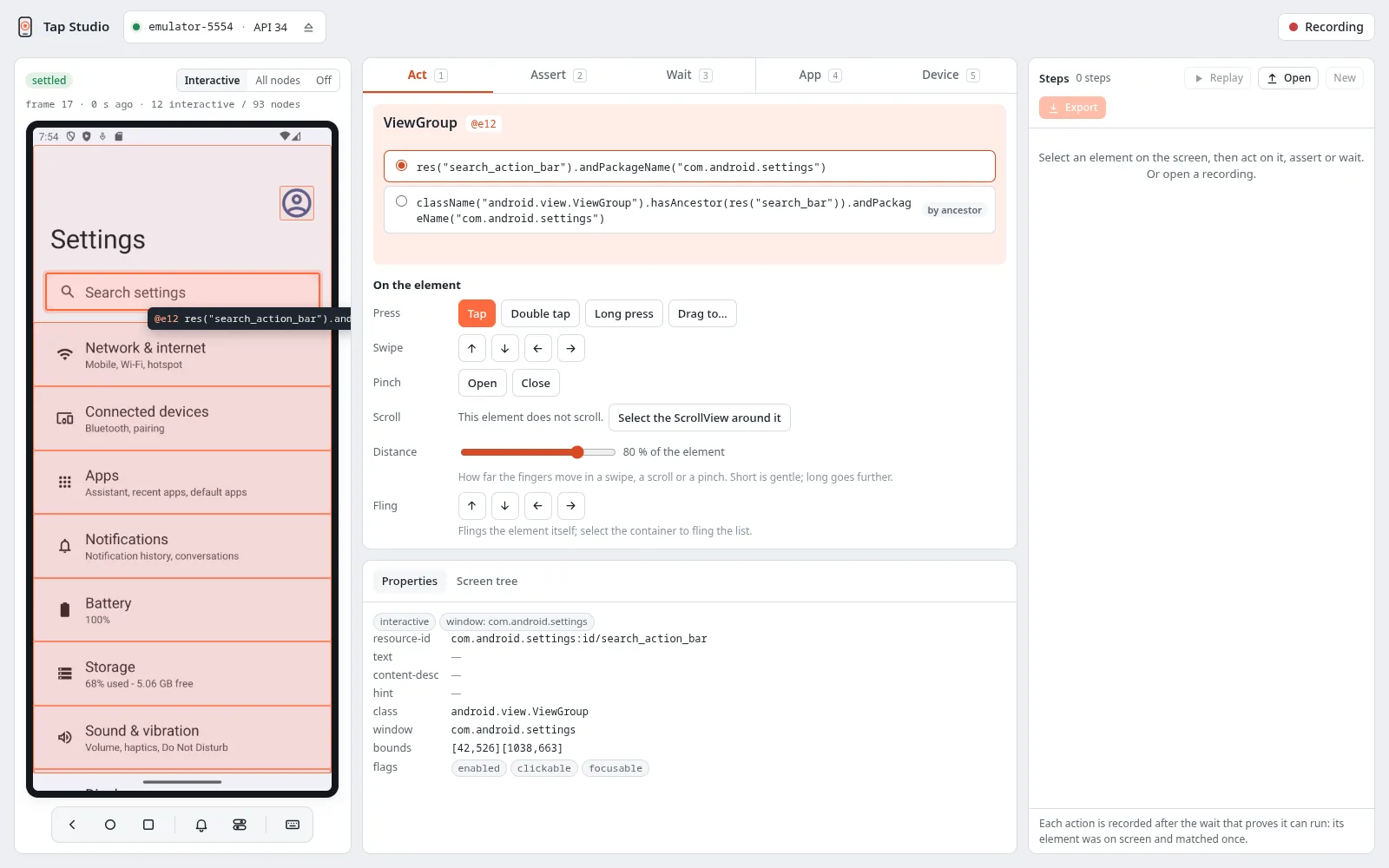
Click the search bar on the screen. Nothing runs on the device yet: the composer shows the
element's class, its ref (@e12) and its selector candidates. The first one is what gets
recorded, here res("search_action_bar").andPackageName("com.android.settings"). The
inspector below lists the element's properties.
2. Act on it
Press Tap (or 1 for the Act tab). The tap runs on the device and becomes step 1. The step
shows what it does in the Kotlin client's words, the wait it runs after (await(…).one(): the
element was on screen and matched once) and how long it took.
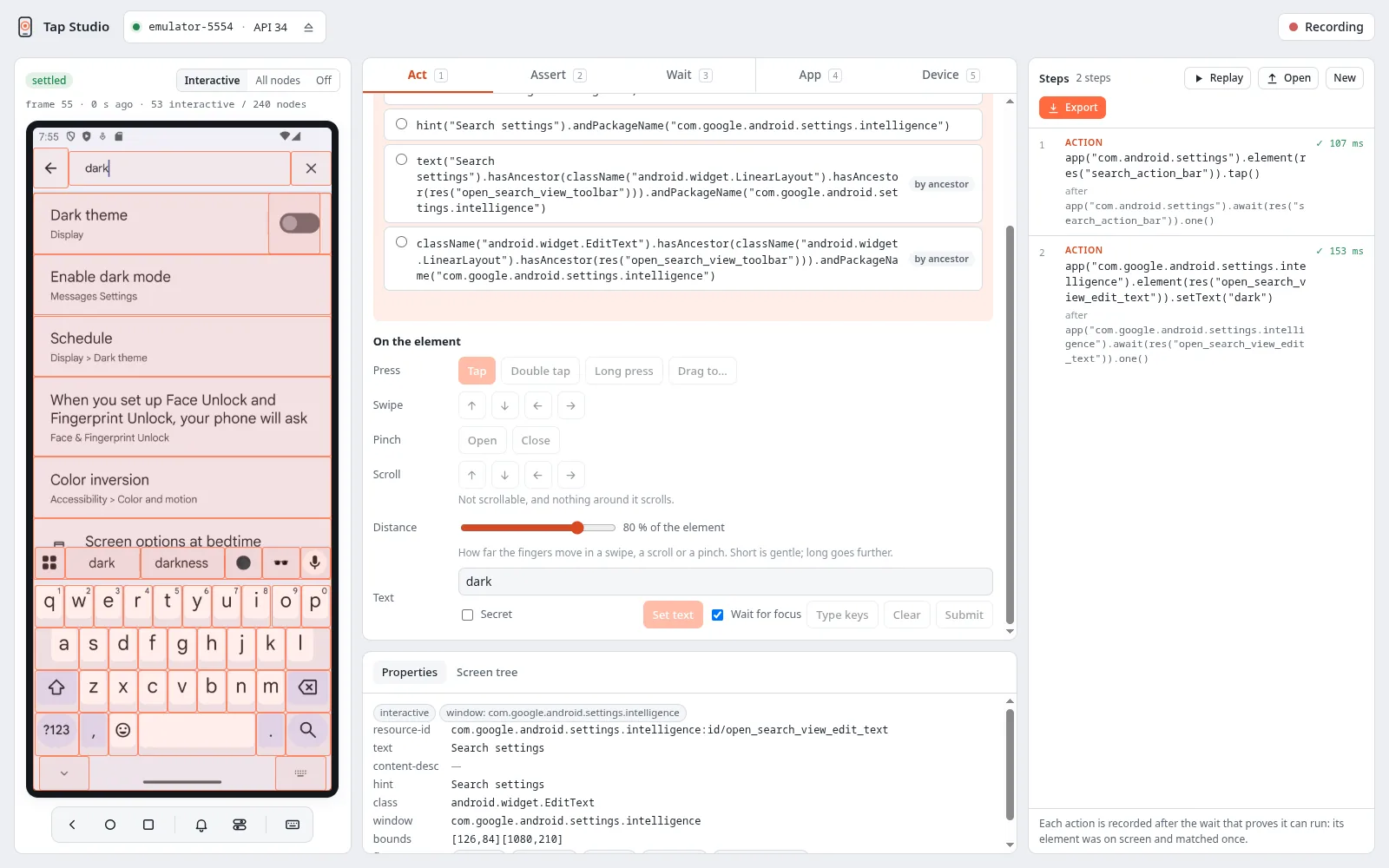
Settings opens its search page. Select the search field, type dark into Text and press
Set text: step 2. Studio follows the screen to the new app
(com.google.android.settings.intelligence) on its own.
3. Check the result with a wait
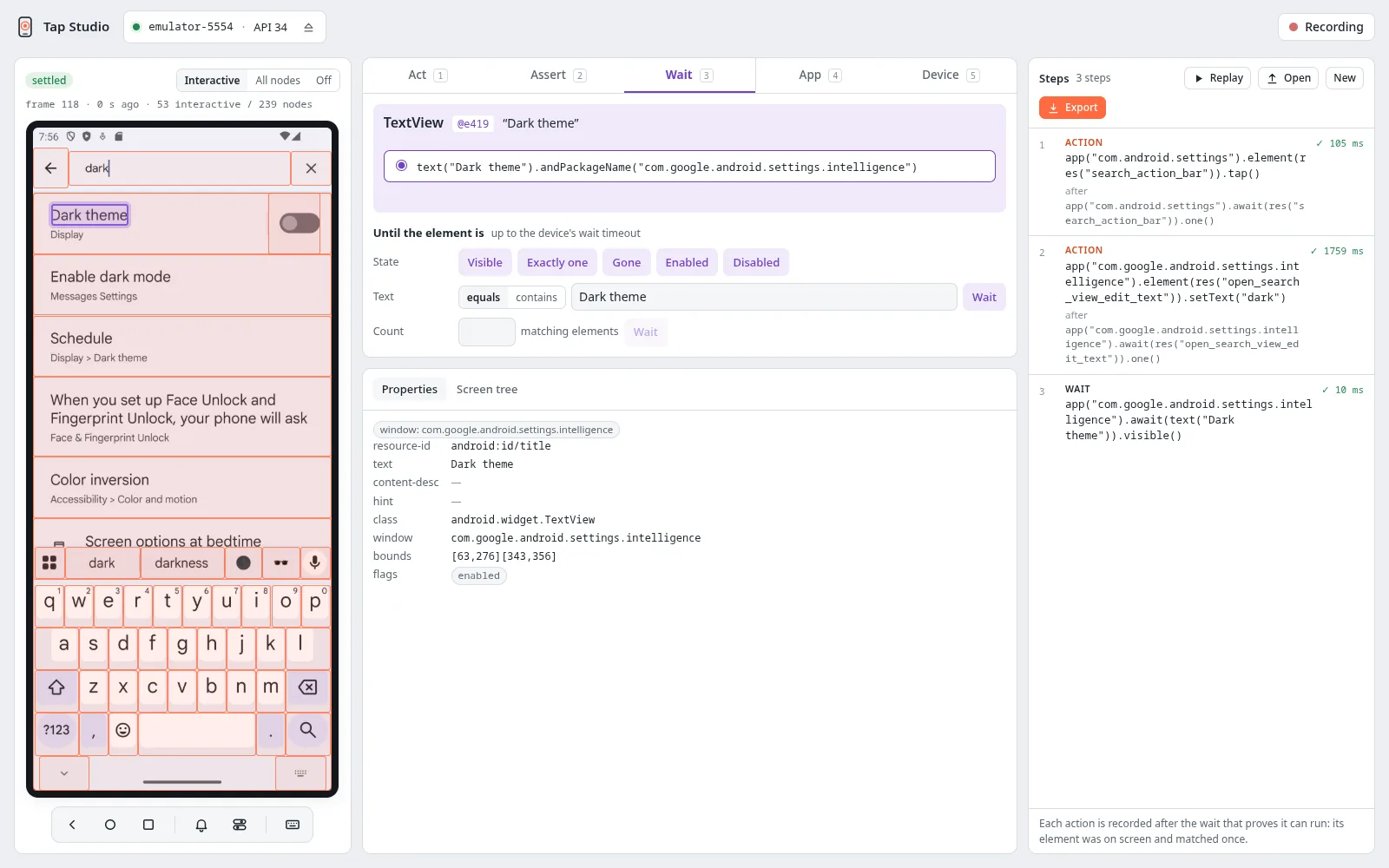
Switch the overlay to All nodes and select the "Dark theme" title: its selector is
text("Dark theme"). On the Wait tab, press Visible to record step 3.
Assert or Wait?
An Assert checks the element as it is at that moment and fails at once. Right after you type, the results are still on their way, so on a replay an assertion here can run before they appear:
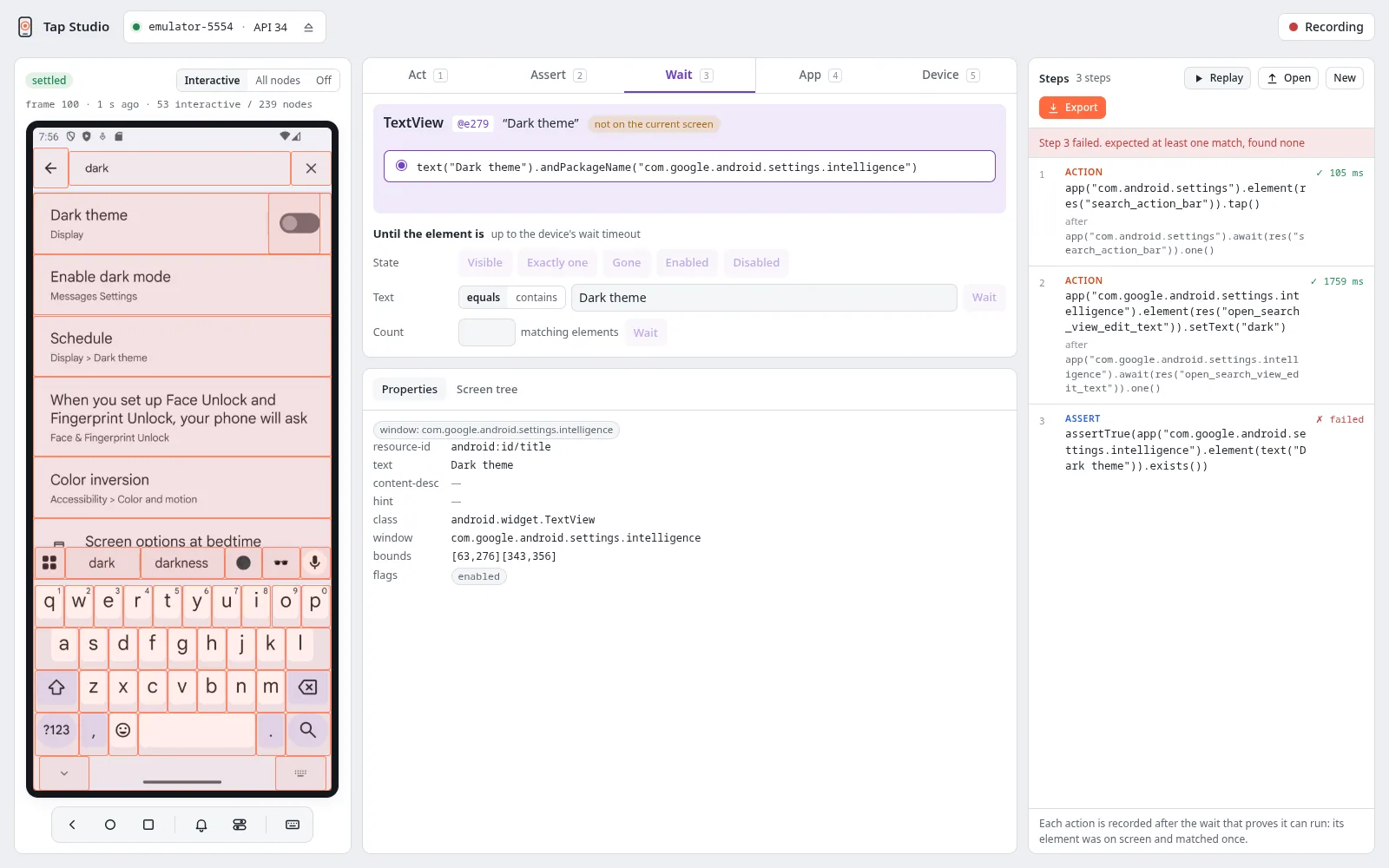
Use Wait for something that is about to happen, and Assert for something that already holds (a field's text after you set it, a button's enabled state).
4. Replay, edit and export
Go back to the Settings home screen and press Replay: every step runs from the first, and the panel reports All 3 steps passed (the screenshot on Tap Studio). Click a step to change its selector, value or note, run it alone, move it or delete it (Editing steps). Export gives the recording as JSON (Export and open), and the steps map one to one onto a test (in Kotlin, the same calls in camelCase: Kotlin + JUnit 5):
from tap_e2e import res, text

def test_finds_dark_theme(tap_device):
    settings = tap_device.app("com.android.settings")
    search = tap_device.app("com.google.android.settings.intelligence")
    settings.cold_launch()
    settings.wait(res("search_action_bar")).one().tap()
    search.wait(res("open_search_view_edit_text")).one().set_text("dark")
    search.wait(text("Dark theme")).visible()
The test starts with a cold launch so it begins from a known screen; in Studio, record it first from the App tab. Turning a recording into a test has the full mapping.